The goal is to see your Android screen on a PC and stop sharing when you choose. Prepare an Android 8+ phone or tablet, a PC browser, and internet on both. This APK cannot be installed on an iPhone.
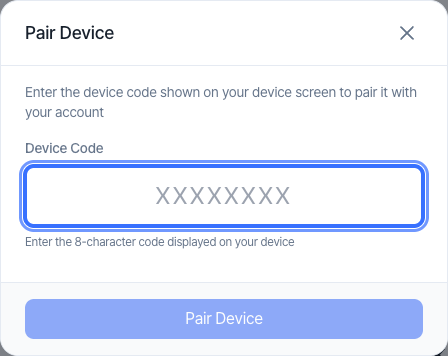
On the PC, create or sign into your StreamZet account and open Devices. Complete email verification if sign-up requests it.
Install the standalone support app below on Android. You can try the business sample later.
On Android, use the download button above. Confirm the filename is streamzet-support-0.2.0-rc.3.apk.
Open the APK from Files → Downloads or the browser download notification. If you used a PC, transfer the file to Android’s Downloads folder first.
If Android asks about the installation source, verify that this is the Streamzet Support file you downloaded. If requested, allow installation for that browser or file app, then return. If organization policy blocks installation, contact your administrator.
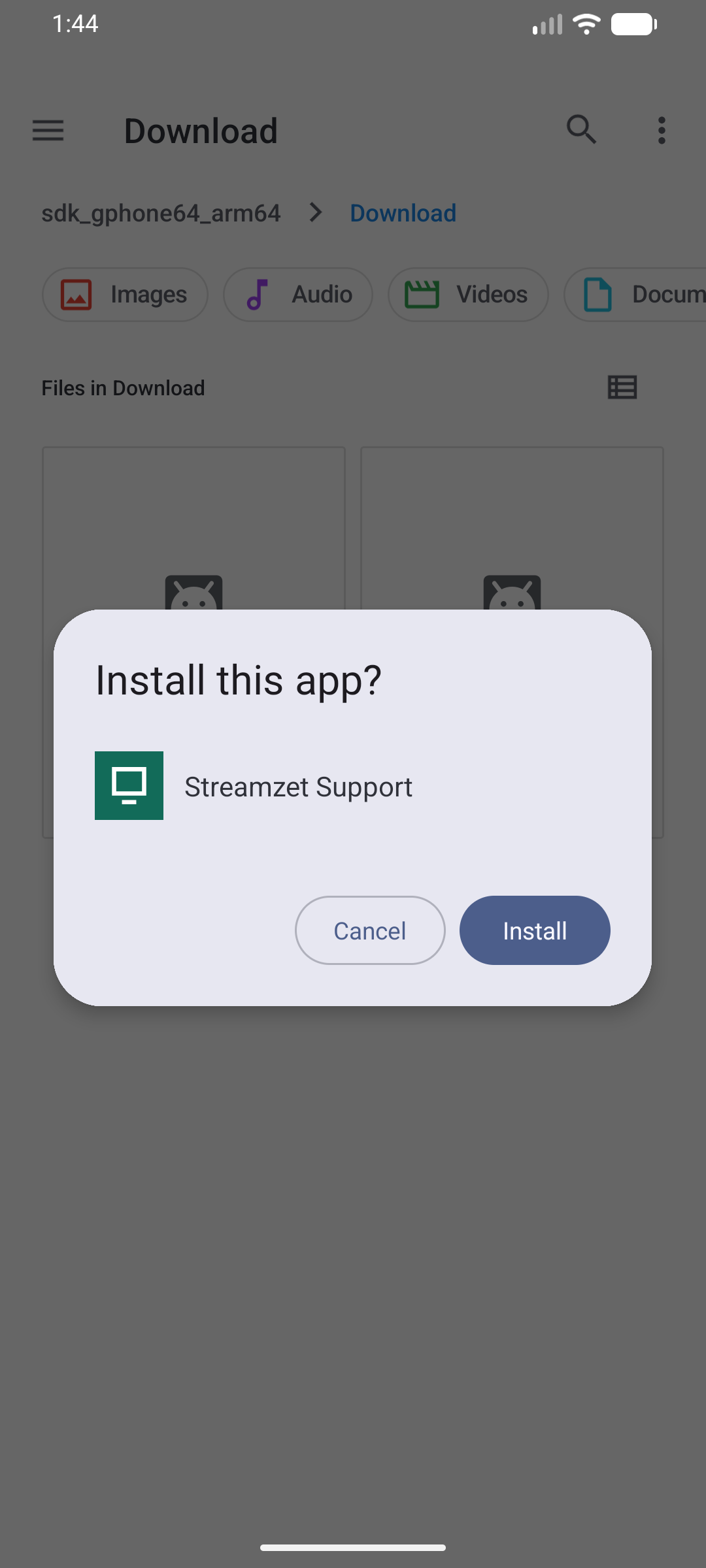
Choose Install, then Open. The app is named Streamzet Support. The capture below is a real installation from Files on Android 16; wording varies by device and language.
Check the app name, then select Install at the bottom right. No device code or key is needed here.
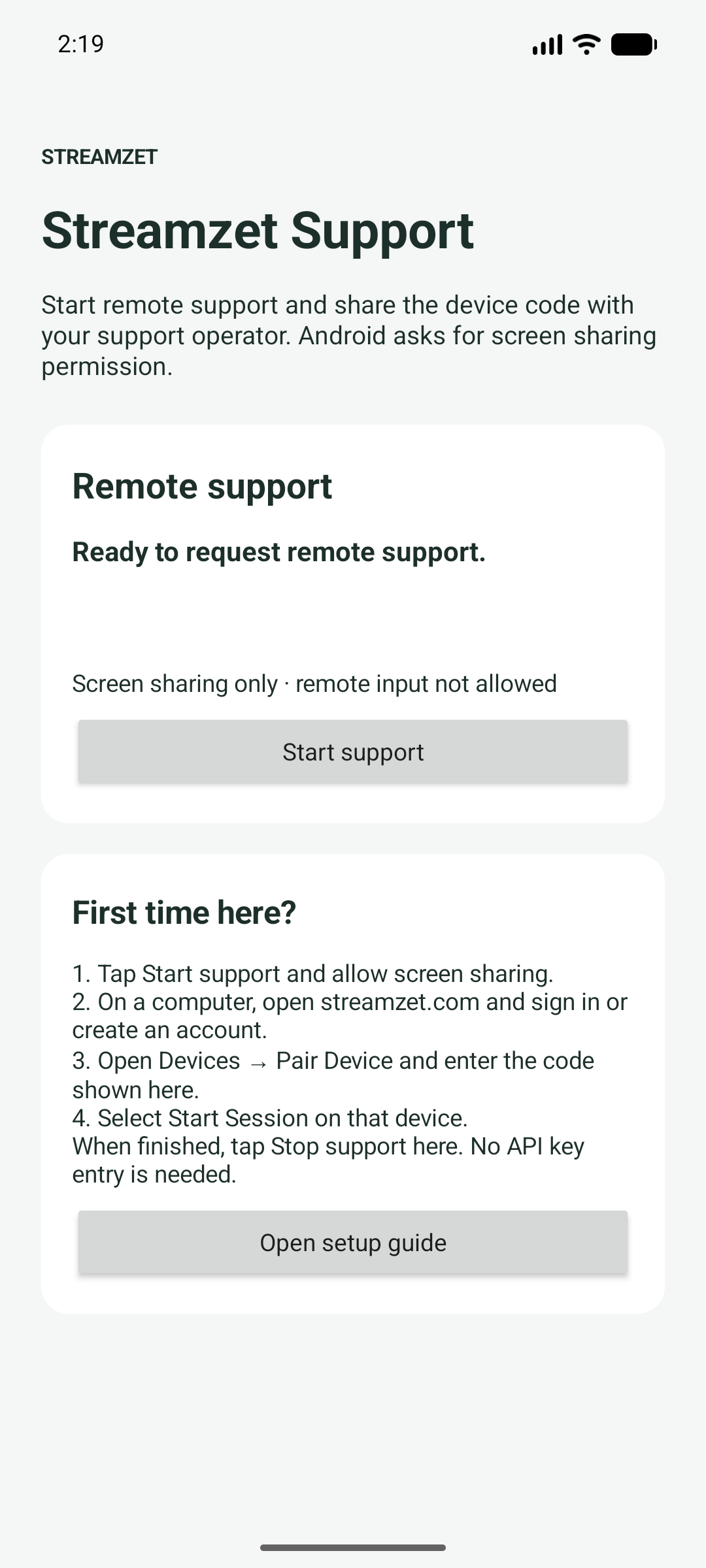
Choose Start support in the app and read the sharing disclosure. For a first trial, choose Share screen only to check video without configuring accessibility.
Actual first launch of the public APK on a fresh test device. Start with Start support.
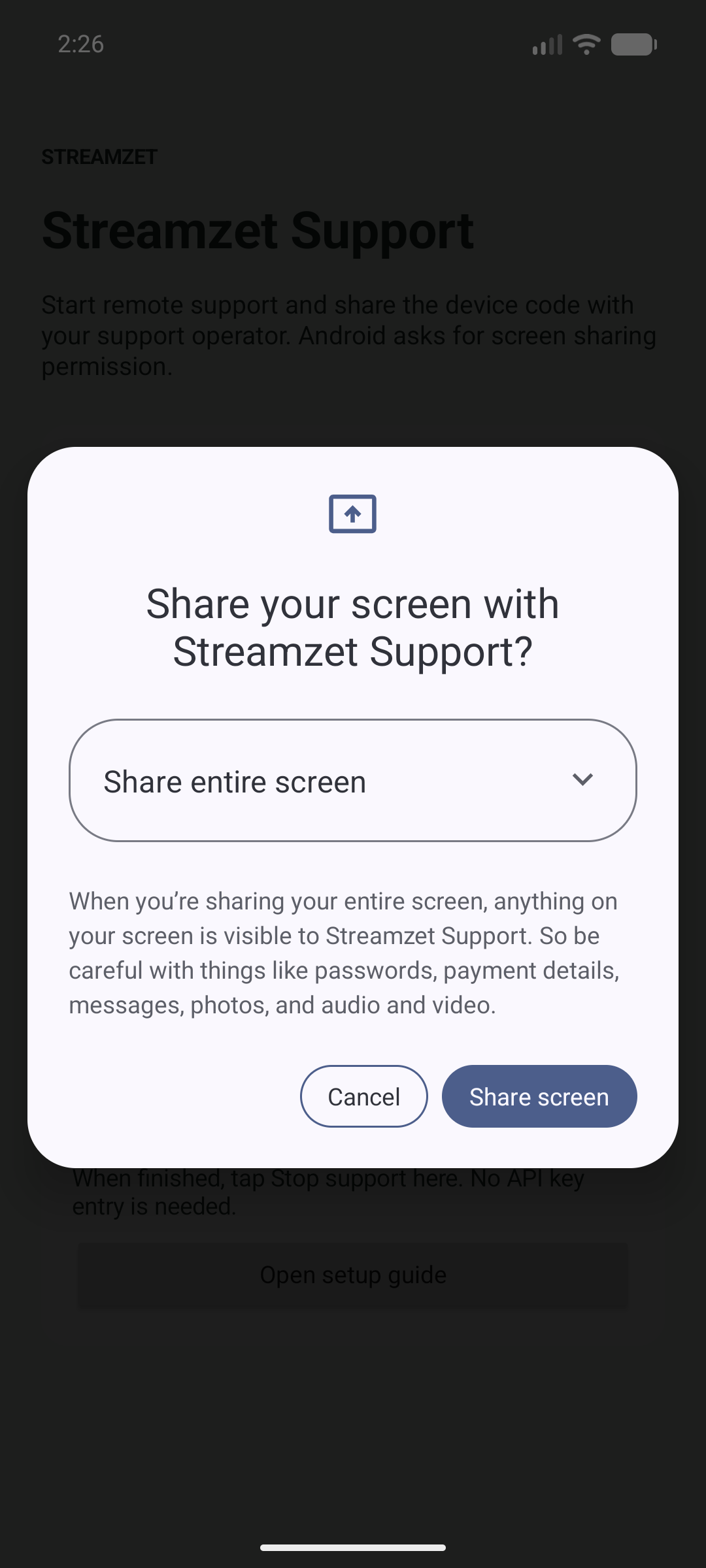
Also approve Android’s screen-sharing prompt. Choose the entire screen if you want to show other apps. In screen-only mode, clicks on the PC do not control Android; that is expected. Enable accessibility using the detailed guide only when remote input is needed.
Android 16 in English. Confirm the scope, then select Share screen at the bottom right.
When your registered device is online, choose Start session on its card. The browser opens that device’s remote-support screen. The device may stay offline until sharing is approved on Android.
Success means the PC shows the actual Android screen and follows changes made on Android. A visible code or Waiting for operator alone does not mean a viewer is connected. Allow the first connection to complete; use the troubleshooting steps below if it keeps waiting.
Return to Streamzet Support on Android and select Stop support. You can also stop from Android’s screen-sharing indicator.
Confirm the PC video stops or disconnects and the app offers Start support again. Merely switching to Home or closing an app screen does not stop support.
For another trial, start support again and approve a new Android screen-sharing session.
Open the .apk in Files → Downloads on Android; it does not run on a PC or iPhone.
Device limit reached
The account has used its device allowance. Remove an unneeded registration you created for testing or review the plan. Keep other people’s production devices.
Device is offline
Finish Start support and screen-sharing approval on Android; check its internet connection.
Code registered but no video
Start the registered device’s session on the PC and check that the code belongs to the currently running app.
Video works but clicks do not
This is expected in screen-only mode. For remote input, enable that app’s accessibility permission using the detailed guide.
If you still need help, send the app name, Android version, step where you stopped, and error screen through the contact form. Omit passwords, device codes and full configuration files.
After the standalone app works, try product entry and remote input in the business sample. Stop the first session, install the business app, and register its separate code.
Linux examples run in a terminal. On Ubuntu 24.04, use the provided executables and configuration helper without building. Desktop sharing requires additional Linux setup.
Embedding the SDK into your company’s app is a development task. Someone who can modify the host app, configure development tools, build it and validate releases should follow the integration guide.